Screener Filters
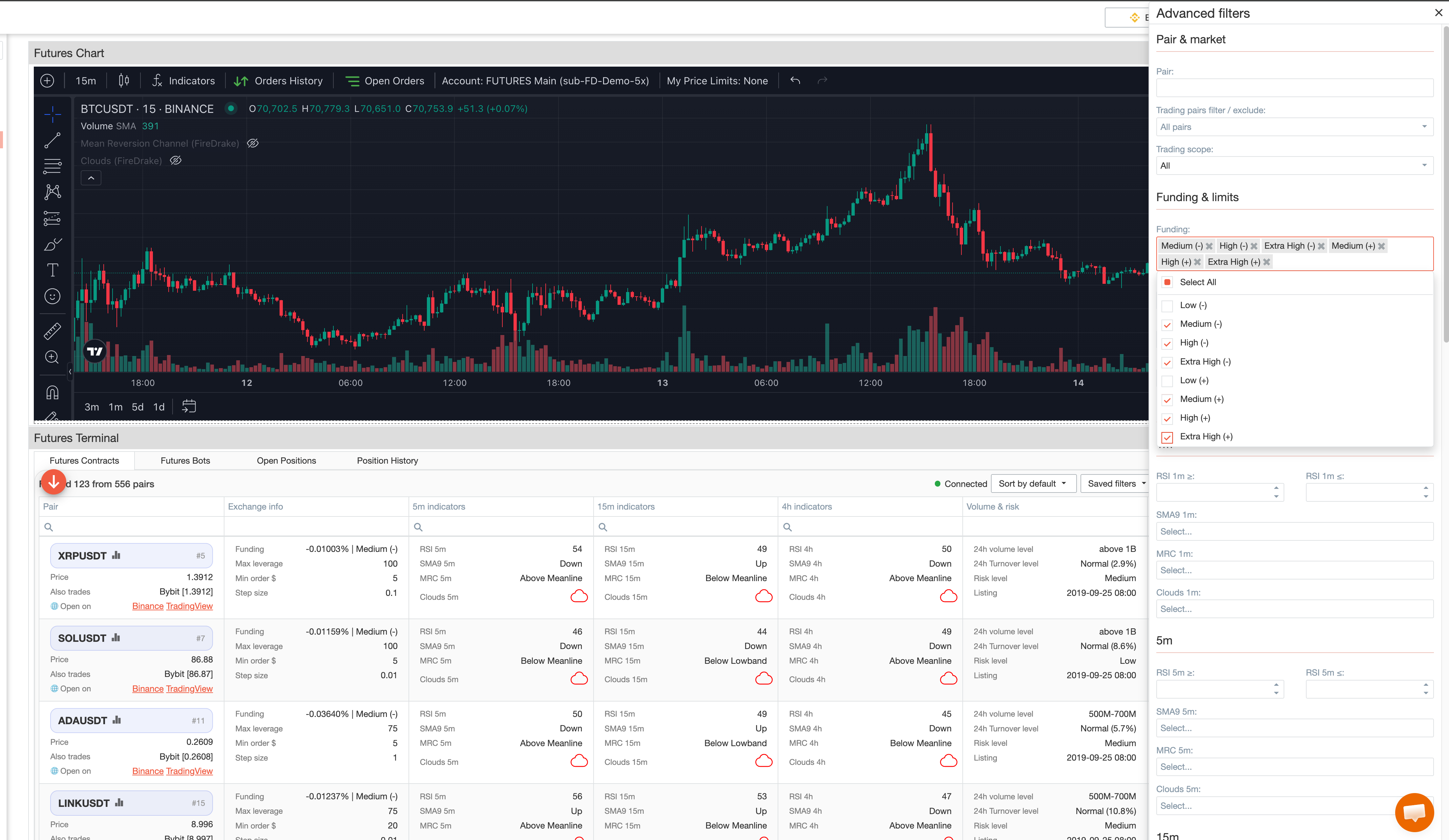
The Advanced Filters window narrows the contracts list in the Terminal Screener to the instruments that match your conditions.
You can build the conditions by hand, reuse a saved preset, or load the conditions of one of your trading strategies in a single click.
What you can filter by
The filters cover different types of conditions:
- pair or symbol;
- allowed and excluded trading pairs;
- price limits;
- also-traded instruments;
- funding-related conditions;
- max leverage;
- minimum order size;
- step size;
- indicator conditions;
- volume and turnover characteristics;
- risk and volatility characteristics;
- listing-related conditions.
Indicator-based filtering supports multiple timeframes:
- 1m
- 5m
- 15m
- 30m
- 1h
- 4h
Depending on your setup, you can screen contracts using indicators and states such as:
- RSI
- SMA9 direction
- MRC state
- Clouds state
This makes screening more consistent instead of relying only on manual browsing.
Filtering by a trading strategy
A strategy already describes the conditions you want to see. Instead of repeating them by hand in the filter form, you can load them from the strategy itself.
Open the Saved filters dropdown on the screener toolbar. Your trading strategies are listed there next to your saved presets and marked with a strategy badge. Pick one, and the filter form is filled with that strategy's conditions and the contracts list is rebuilt.
This answers a practical question: which pairs would this strategy consider right now?
What is loaded from the strategy
- indicator conditions for every timeframe — RSI, SMA9, MRC, Clouds;
- funding level;
- volume, risk, volatility and trade score;
- the listing window, converted from the strategy's "listing days" into dates;
- your allowed or excluded trading pairs set;
- the price limits the strategy uses;
- the delisting and "pairs listed on both exchanges" options;
- leverage and first order size from the strategy's Bot Settings — a contract whose max leverage is below the bot's leverage, or whose minimum order is above the first order, is excluded.
The filters stay editable after loading. You can adjust any condition, clear one, or save the result as your own preset.
Imported strategies are not available in this list: their conditions are not shown in the interface, so they cannot be loaded into the filters.
The banner above the list
When a strategy is loaded, a banner appears above the contracts list with the strategy name and anything the filters cannot express. It stays visible until you clear the strategy.
Two cases appear there:
- The strategy is outside its schedule right now. The banner names the reason: either today is a day the strategy does not run on, or the current time is outside its allowed hours. The pairs below match its conditions, but no deals will be opened until the schedule allows it. A schedule limits when a strategy runs, not which pairs qualify, so it cannot be a filter.
- The first order is set as a percent of the deposit. In that mode the order size in dollars depends on the account balance, so the minimum-order check is not applied.
Price limits
Price limits appear as two fields in the filter form, upper and lower, next to your trading pairs filter. They list your own price limit rules.
A contract is hidden when its current price is outside the limit. Loading a strategy fills these two fields with the rules the strategy uses, so you can see which ones were applied — and clear them if you want a wider list.
Under the fields you will see how many pairs the limits removed. If limit data is temporarily unavailable, the line says so: the list is then wider than what would actually be traded.
What the result does and does not mean
The result shows which pairs the signal engine would currently consider for this strategy.
It is not a promise that a deal opens. Conditions that depend on the moment of entry stay outside the filters: limits on how many bots may run at once, and the checks performed when a deal is actually opened.
An empty list is a normal and meaningful answer. Strategies usually combine several conditions, and at a given moment no pair may satisfy all of them at once.
Building a repeatable filter setup
The screener is especially useful when you screen the market the same way on a regular basis.
Instead of rebuilding the same filter combination every time, you can prepare a setup that reflects your preferred conditions and then reuse it later.
This works well when you want to monitor several contract groups with different conditions, for example:
- one setup for stronger momentum;
- one for quieter conditions;
- one for higher liquidity;
- one for more selective volatility or risk conditions.
Saved filters and presets
The screener supports saved filter presets.
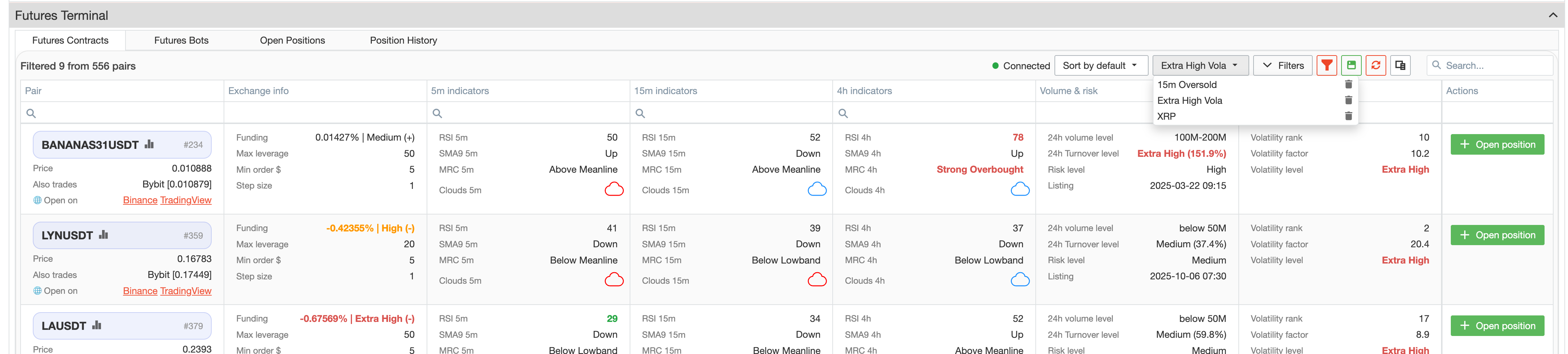
You can:
- create a filter setup once;
- save it under a clear name;
- apply it again later in one step;
- switch between several saved presets;
- delete presets you no longer need.
Your trading strategies share the same dropdown, so you can switch between a saved preset and a strategy's conditions from one place. Strategies are marked with a badge and cannot be deleted from here — they are managed in Trade Strategies.
Summary
Use the filters when you want to:
- narrow the contracts list by practical criteria;
- screen with indicators across multiple timeframes;
- see which pairs one of your strategies would currently consider;
- save and reuse filter presets.
Related
- Terminal Screener — the contracts list these filters apply to;
- Trade Strategies — where the loaded conditions come from;
- Price Limits — the rules used by the price limit fields;
- Trading Pairs — the allowed and excluded pair sets;
- Bot Settings — the source of leverage and first order size.