Trade Web-Hooks
The Trade Web-Hooks section is used to connect external trading signals to the Futures workflow in Firedrake.
Open this section when you want signals to come from an external system, such as TradingView, instead of relying only on manual analysis inside the platform.
Why users use webhooks
Use webhooks when you already have an external signal source and want Firedrake to respond to that signal in a controlled way.
Use this section when you want to:
- connect an external signal to a Futures setup;
- choose which instrument the signal should affect;
- define how the platform should handle repeated signals;
- connect the signal to a prepared trading configuration instead of reacting manually every time;
- decide how external close signals should work together with the bot's own closing logic.
What users do in this section
In this section, users can:
- create a webhook;
- edit an existing webhook;
- enable or disable a webhook;
- search and organize the webhook list;
- copy webhook links;
- prepare alert templates for external systems;
- connect webhook behavior to Bot Settings and Telegram Notifications.
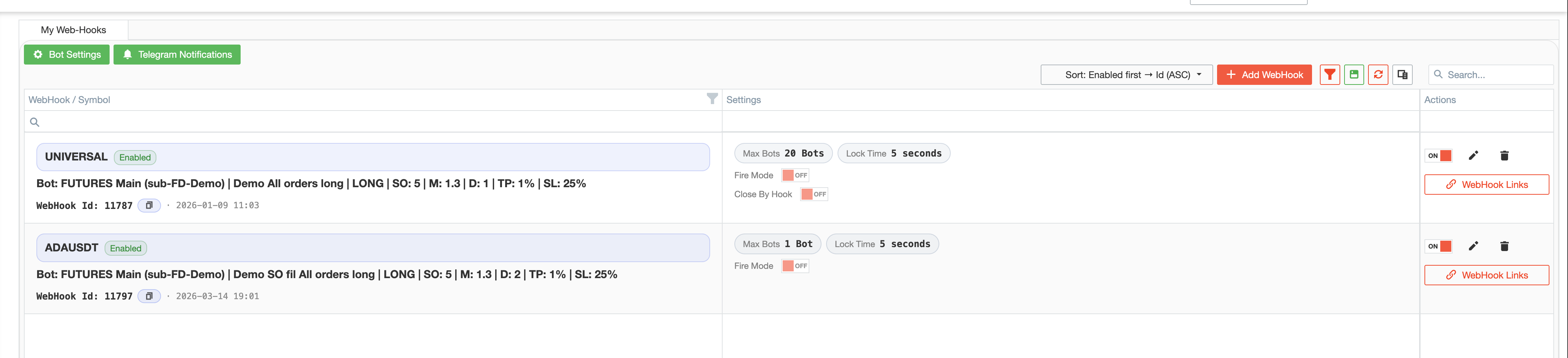
The section supports both initial setup and later maintenance.
Standard webhook setup
When you create a webhook, you define the conditions that determine how Firedrake should handle the incoming signal.
A webhook setup can include:
- the instrument or symbol;
- linked Bot Settings;
- Lock time;
- the maximum number of active bots allowed for that webhook;
- whether the webhook is allowed to participate in closing logic.
The webhook defines the signal source and how that signal is applied within the trading setup.
WebHook Links
Each webhook includes ready-to-use links.
These links let you take a prepared Firedrake webhook and connect it to an external system without assembling everything manually.

Users typically open this window to:
- open the webhook links window;
- copy the correct link for the selected webhook;
- insert that link into the external alert source;
- keep track of which link belongs to which setup.
For many users, this is the step where the webhook becomes ready to use outside the platform.
Symbol-specific hooks
A standard webhook is usually created for a specific symbol.
Use this type of setup when you already know which instrument the signal should control. It is the most direct format for symbol-based automation, where each webhook is linked to a clearly defined instrument and bot configuration.
For users who want a fixed and predictable setup, symbol-specific hooks are usually the simplest option.
Universal webhook
The UNIVERSAL webhook mode is a more flexible format.
It is designed for users who want to send a more general external signal and let the message itself describe whether it is an open or close action, and whether it applies to a long or short scenario.
UNIVERSAL works well for more advanced alert flows, especially when one structure needs to support several different signal outcomes.
TradingView templates
One of the practical parts of the UNIVERSAL webhook flow is the built-in set of TradingView alert message templates.
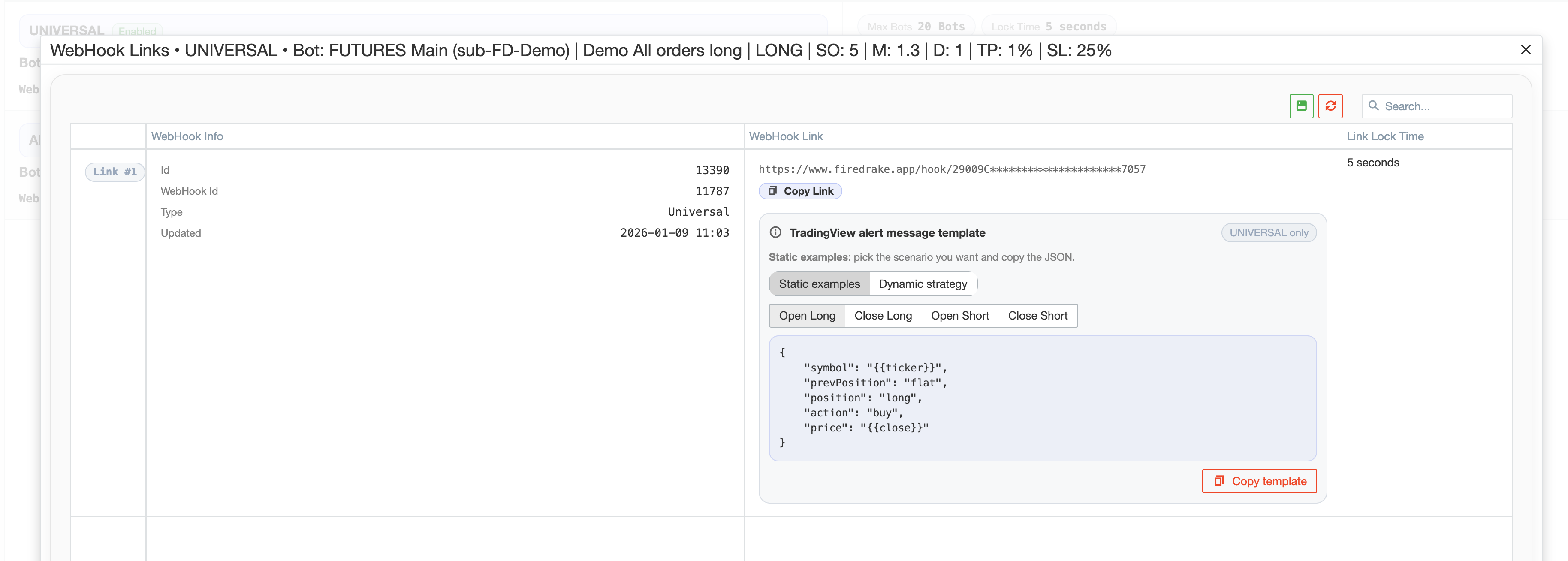
These templates help users prepare TradingView alerts without assembling the full message manually each time.
Depending on the setup, users can work with templates such as:
- static examples;
- dynamic strategy examples;
- open long templates;
- close long templates;
- open short templates;
- close short templates.
This reduces manual work and lowers the chance of mistakes when connecting TradingView to Firedrake.
Close By Hook
Close By Hook determines whether close signals coming from an external system are allowed to close a position through this webhook.
Use this setting to control how external close signals work together with the bot's own closing logic.
When Close By Hook is Off
If Close By Hook is set to Off, close signals coming from TradingView or another external system are ignored for closing purposes.
In this mode, the position is expected to close only according to the bot settings, for example through its own Take Profit or Stop Loss logic.
Use this mode when the webhook should handle opening, while all closing behavior remains under the bot's own rules.
When Close By Hook is On
If Close By Hook is set to On, the webhook is allowed to participate in closing a position.
In this case, a position can be closed either:
- by the bot settings, such as Take Profit or Stop Loss; or
- by an external close signal sent through the webhook.
Whichever valid closing event happens first can end the trade.
Use this mode when an external system should take part in entry and exit logic.
FireMode
FireMode is an advanced option that changes how close signals from a webhook are applied to positions.
Without FireMode, webhook closing behavior stays tied to positions that were originally opened by that same webhook flow.
With FireMode enabled, the webhook can also be used in broader closing scenarios.
How Close By Hook and FireMode work together
The easiest way to understand these settings is through practical cases.
Case 1: position opened by the webhook
Assume a position was opened by the webhook.
If a close signal later comes from that webhook, and closing by webhook is allowed, the position can be closed by that external signal.
This is the standard webhook lifecycle: the webhook participates in opening, and later can also participate in closing.
Case 2: position opened outside the webhook, FireMode Off
Assume a position was not opened by the webhook.
For example, it may have been opened by a Firedrake bot or manually from the Terminal screener.
If a webhook close signal arrives later, and Close By Hook is enabled but FireMode is Off, that position will not be closed by the webhook signal.
In this case, the signal is ignored because the position was not originally opened through that webhook flow.
This keeps webhook closing rules strict and isolated.
Case 3: position opened outside the webhook, FireMode On
Assume a position was opened by a Firedrake bot or manually from the Terminal screener, not by the webhook itself.
If you still want an external signal to be able to close that position, configure the webhook as follows:
- Close By Hook = On
- FireMode = On
In this mode, a webhook close signal can close the position even though that position was originally opened outside the webhook.
Use this when an external system, such as TradingView, should act as an additional exit layer for positions opened elsewhere in the platform.
Common use cases
These settings define how different signal sources work together.
They support several common cases:
- a conservative setup where the webhook opens positions, but only bot settings can close them;
- a mixed setup where both the bot logic and the external webhook can close the position;
- an advanced setup where external close signals can also close positions that were opened outside the webhook flow.
Limits and lock time
This section also helps users control how often a webhook is allowed to act.
Lock time
Lock time helps prevent signals from firing too frequently one after another.
Use it to protect the webhook from repeated triggers within a short period of time.
Max active bots
Max active bots helps limit how many bot-driven actions can run for that webhook at the same time.
Use it to avoid uncontrolled growth in simultaneous positions coming from the same webhook.
Together, these controls help keep webhook activity safer and more predictable.
Safety recommendations
Trade Web-Hooks are one of the most sensitive sections in the Futures module because a webhook can lead to real trading activity.
For that reason, the safest approach is:
- start with a clearly named webhook;
- connect it to the correct Bot Settings;
- keep the limits conservative in the beginning;
- decide deliberately whether Close By Hook should be Off or On;
- use FireMode only when you clearly want webhook close signals to affect positions opened outside the webhook flow;
- use the provided links and templates carefully;
- test the alert flow before relying on it in live trading;
- add Telegram Notifications if you want better visibility outside the platform.
How this section fits into the Futures workflow
Trade Web-Hooks are part of the Futures process rather than a standalone automation block.
Related sections:
- Bot Settings define how the trade should be managed after the webhook signal is accepted;
- Telegram Notifications help you stay informed about what happens after the webhook starts affecting the account;
- Terminal is where you later see the resulting bots, positions, and position history;
- Dashboard is where you later review the result of webhook-driven activity.
This section connects external signals to the rest of the Futures process.
Typical workflow
A typical user flow usually looks like this:
- Create a webhook and choose the appropriate trading setup.
- Connect the webhook to the right Bot Settings.
- Set a reasonable Lock time and active-bot limit.
- Decide whether the webhook should only open positions or also participate in closing.
- If closing by external signal is needed, configure Close By Hook accordingly.
- If external close signals should also be able to close positions opened outside the webhook, enable FireMode.
- Open the links window and copy the correct webhook link.
- If using UNIVERSAL, choose the appropriate TradingView template.
- Configure the alert in the external system.
- Test the setup carefully before using it with real trading activity.
- Use Terminal and Dashboard to monitor what happens afterward.
Summary
Use Trade Web-Hooks when you want external signals to become part of your Futures process in a clear and controlled way.
This section lets you connect external signal systems to Firedrake's execution settings, limits, and bot rules, including more advanced control over how positions are opened and closed.