Open Positions
The Open Positions section is the place to monitor live futures positions inside the Terminal.
Use it when you want the clearest view of positions that are still active and when you need fast access to position-related actions from the same screen.
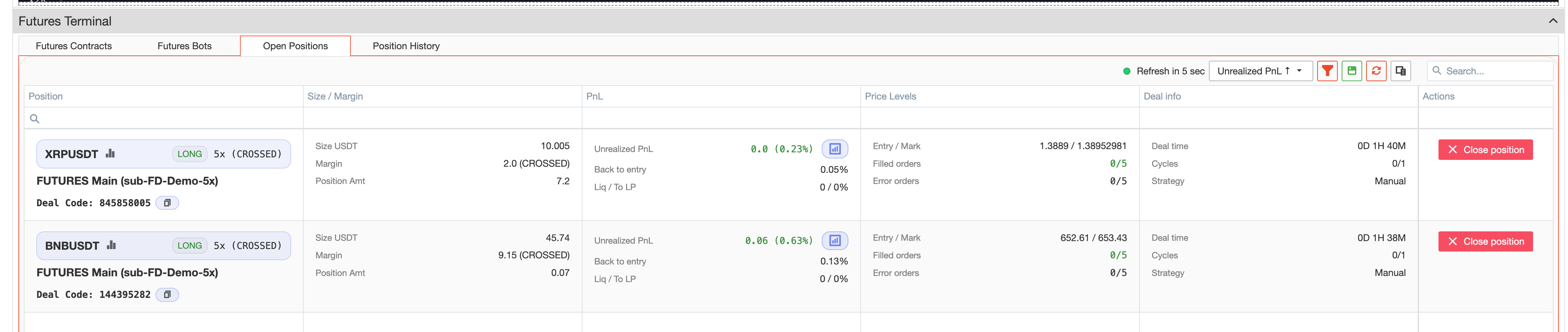
What the tab shows
The list is designed for practical monitoring of active positions.
Depending on the position, it helps you review information such as:
- symbol and side;
- leverage;
- connected account;
- deal code;
- position size in USDT;
- margin;
- position amount;
- unrealized PnL;
- back-to-entry values;
- liquidation and to-liquidation metrics;
- entry price and mark price;
- filled orders and error orders;
- deal time;
- cycles and strategy.
This gives users a compact but useful live view of the current trading situation.
Position control
The Open Positions tab is used for monitoring and working with live positions. It also provides direct actions for working with a live position.
Users can:
- open the instrument on the chart;
- close the position from the list;
- generate a position card.
This makes the tab practical both for review and for immediate action when needed.
Closing a position
The row action available in this tab is Close position.
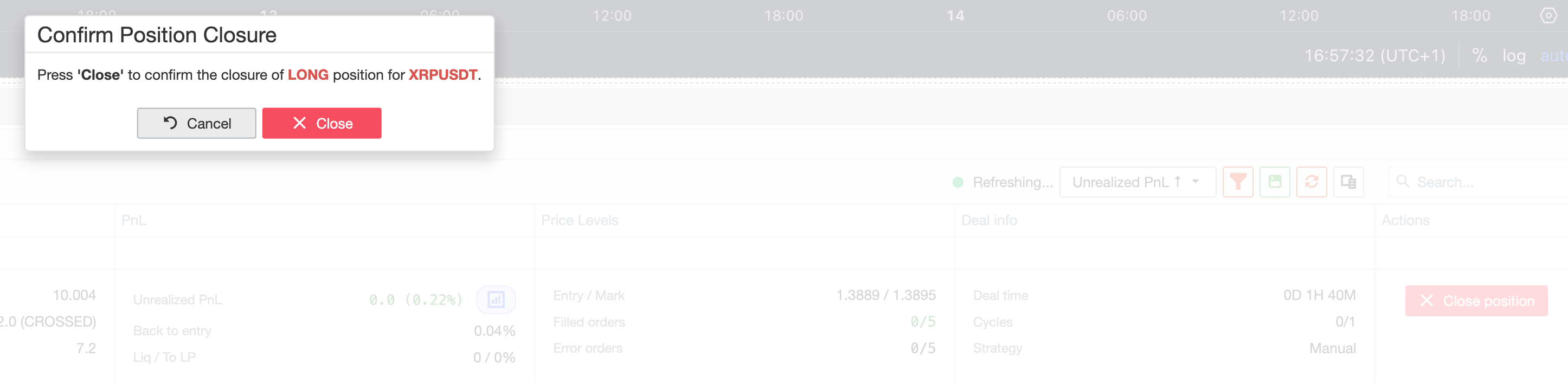
When the user starts this action, the terminal asks for confirmation before proceeding.
This is useful when you want to exit quickly from the same place where you monitor the position.
Position cards
Open positions can also be turned into shareable cards.
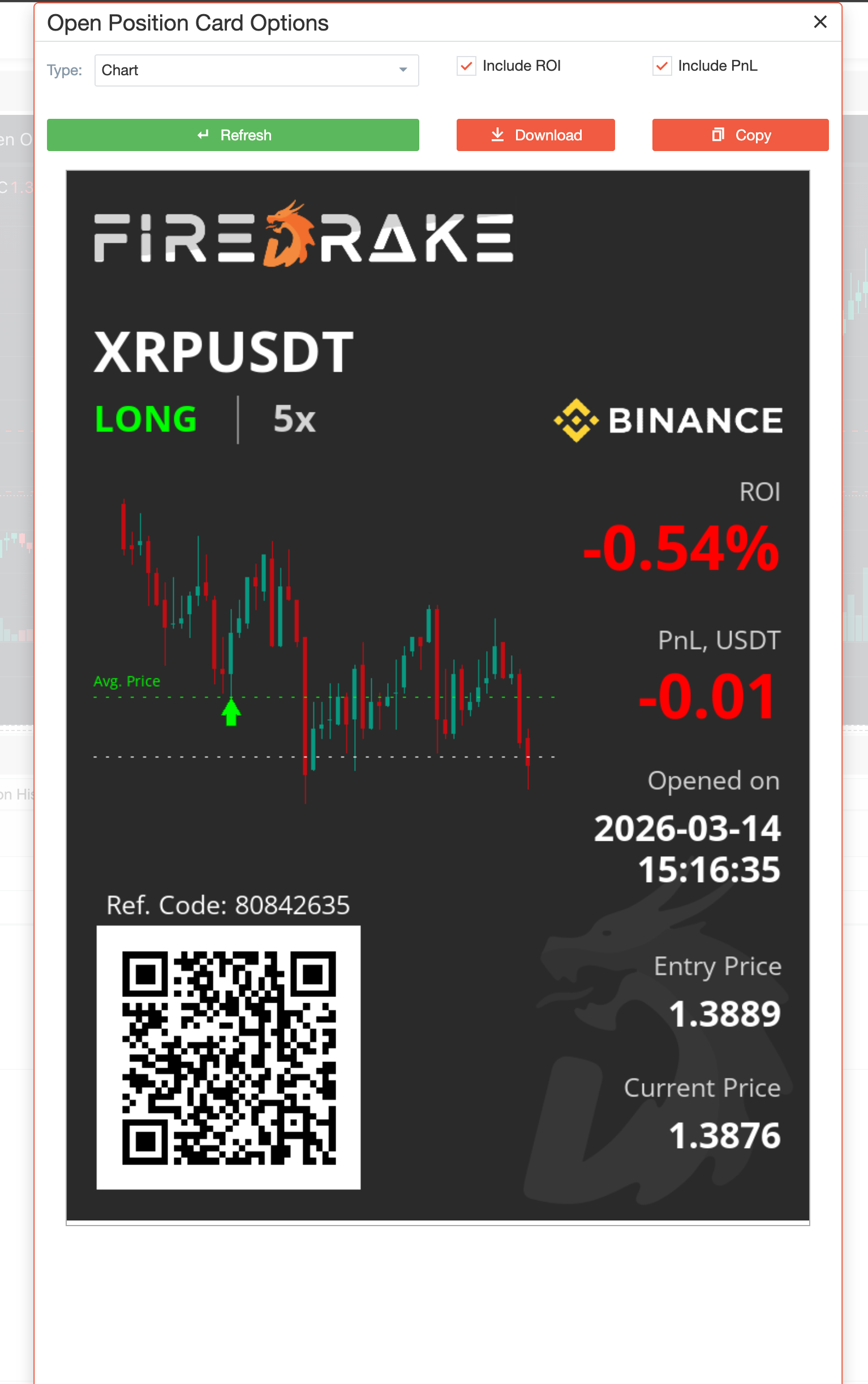
From this section, users can generate a card in different visual formats and choose whether to include ROI and PnL information.
After the card is prepared, it can be previewed, downloaded, or copied.
For more details about this function, see Card Generation.
Typical workflow
A common workflow in Open Positions looks like this:
- Open the Open Positions tab inside the Terminal.
- Review the current position metrics.
- Open the selected instrument on the chart if you want additional visual context.
- Generate a position card if you want to share or save a visual summary.
- Use Close position and confirm the action when you decide to exit.
Summary
Use Open Positions when you want to:
- monitor live futures positions;
- review practical position metrics in one list;
- open the position’s instrument on the chart;
- generate a position card;
- close the position directly from the terminal.