Registration on the platform
To start using the Firedrake platform, you need to register an account. This guide covers the registration process, account activation, logging in, and password recovery.
Registration Process
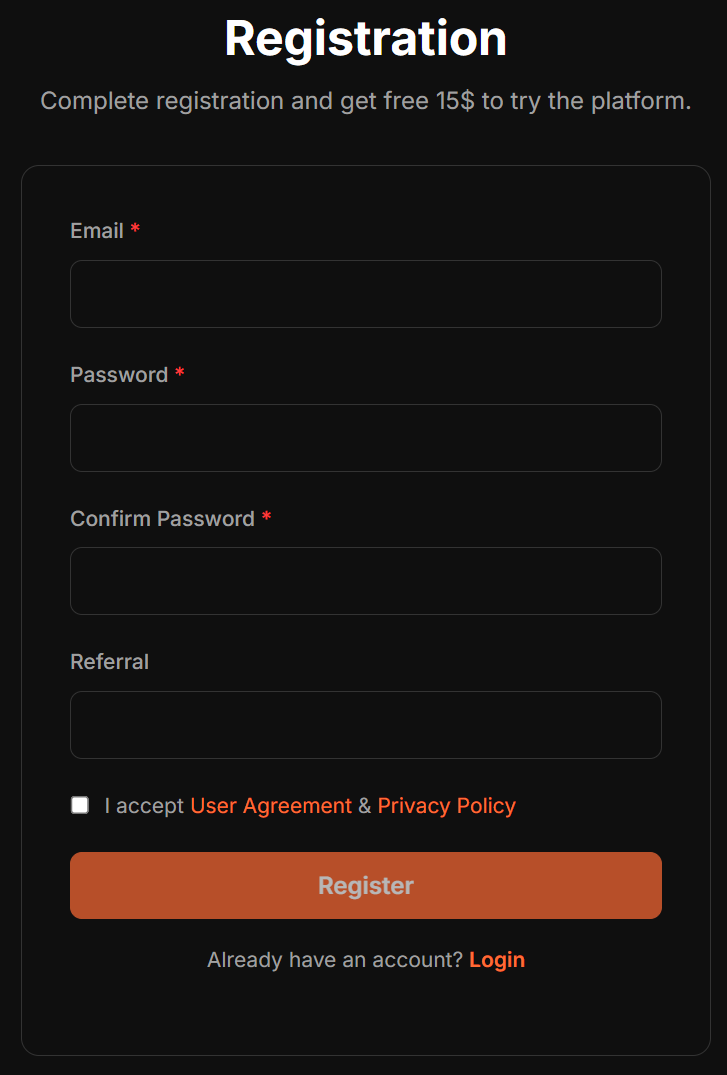
- Navigate to the Registration Page.
- Enter your valid email address.
Note: Access to the system requires Two-Factor Authentication (2FA). It is impossible to register with a non-existent email address, as you will need to receive verification codes.
- Create a strong password.
- (Optional) Enter a referral code if you have one.
- Read and accept the User Agreement and Privacy Policy.
- Click the "Register" button.
Account Activation
Immediately after registration, an activation link is sent to your email address. You must click this link to verify your email and activate your account.
Troubleshooting Activation
If you cannot find the activation email or accidentally deleted it:
- Go to the Login Page.
- Attempt to log in with your credentials.
- The system will detect that your account is not activated and will automatically resend the activation link to your email.
Logging In
The platform prioritizes security and uses Two-Factor Authentication (2FA) for all logins.
- Go to the Login Page.
- Enter your email and password.
- A verification code will be sent to your email address.
- Enter the code in the authentication form to complete the login process.
Telegram Integration
After registering, you have the option to link your Telegram account. Once linked, verification codes will be sent to your email and your Telegram account, providing a convenient alternative for receiving 2FA codes.
Account Recovery
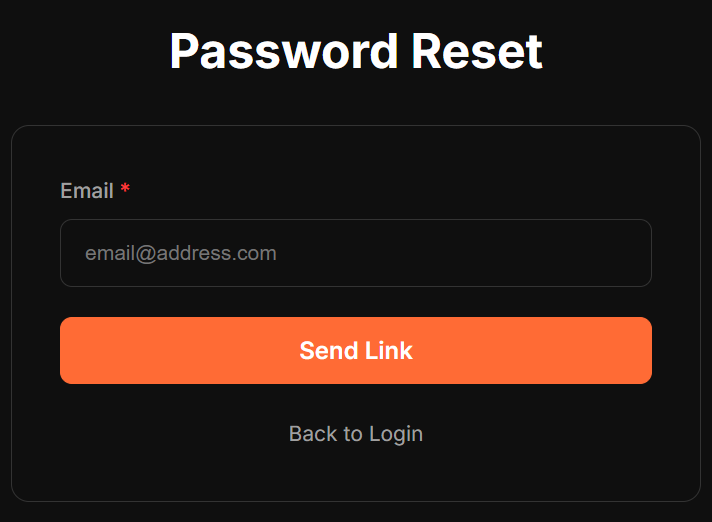
If you have forgotten your password, you can easily restore access to your account.
- Click the "Forgot Your Password?" link on the login page or navigate directly to the Password Recovery Page.
- Enter the email address associated with your account.
- You will receive an email with a password reset link.
- Click the link to set a new password.
- Once the password has been changed, you can log in using the standard procedure.