Creating API Keys for Exchange Connection
Before You Begin
To connect exchange accounts to Firedrake, you will need an account on a supported exchange:
- Binance
- Bybit
If you don't have an account yet:
After registration and completing basic verification, you can proceed to create API keys.
General Principles
Firedrake connects to your exchange accounts exclusively via API keys created on the exchange side.
API keys allow the platform to:
- retrieve balance, position, and order information,
- read transaction history,
- open, modify, and close trades on:
- spot market,
- futures market.
Important: Firedrake does not have access to withdrawals and does not request permissions related to transfers or withdrawals.
Critical: Read / Write Access
⚠️ Firedrake cannot function without read/write (trading) access.
The API key must have:
- permission to read account data,
- permission for trading operations (orders, positions).
Keys with read-only mode are suitable only for monitoring and are not supported by Firedrake for trading.
API Key Requirements
For Firedrake to work correctly, the API key must have:
- ✅ Spot trading
- ✅ Futures / Derivatives trading
- ✅ Account read access (balances, positions, orders)
❌ Permissions for Withdraw, Transfer, Universal Transfer, Margin Loan / Repay must be disabled.
Creating API Keys on Binance
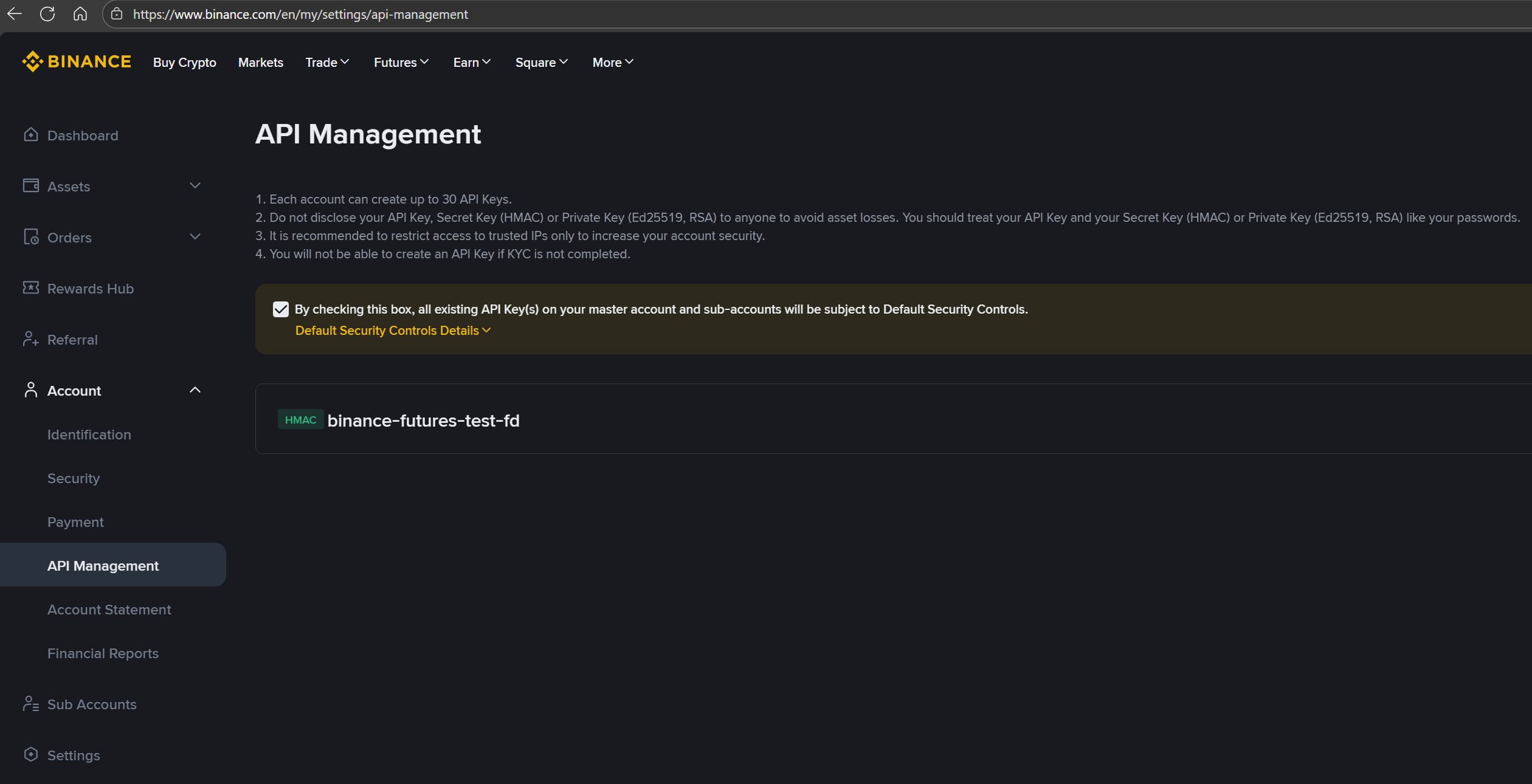
Step 1. Go to API Management
- Log in to your Binance account.
- Open: Account → API Management.
Binance does not allow creating API keys without basic security measures enabled. If KYC is not completed, key creation will be unavailable.
Step 2. Select API Key Type
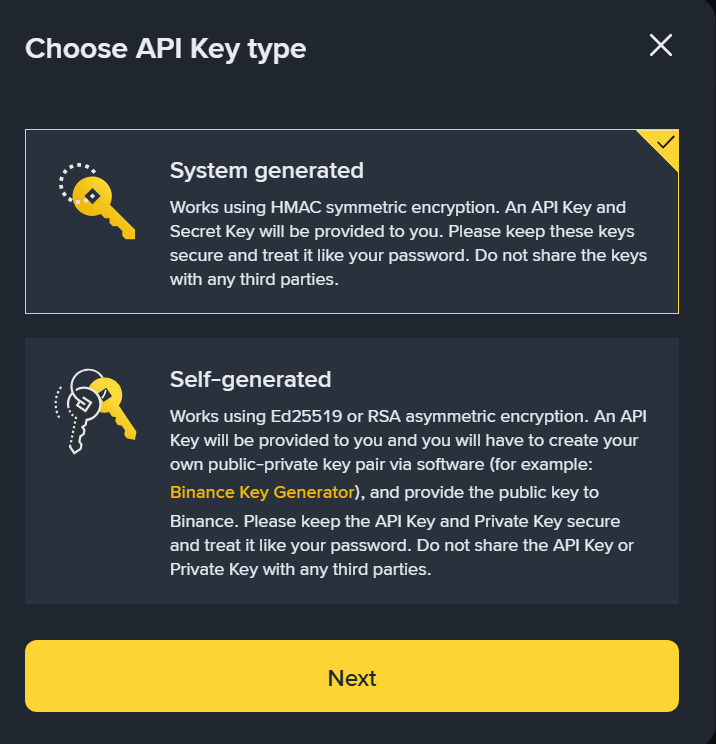
When creating a key, select:
- ✅ System generated API Key (HMAC)
❌ Self-generated API keys (RSA / Ed25519) are not supported by Firedrake.
Step 3. Name the Key and Confirm
- Enter an arbitrary name (e.g.,
firedrake). - Confirm creation via 2FA / email.
After this, Binance will generate:
- API Key
- Secret Key
🔐 The keys appear only once. We recommend entering them immediately into the Linked Accounts connection form on Firedrake and NOT saving them on your personal computer or other devices. Once the account is connected to Firedrake, these keys will not be needed anywhere else.
For additional security, we recommend rotating your API keys periodically (every 1-3 months).
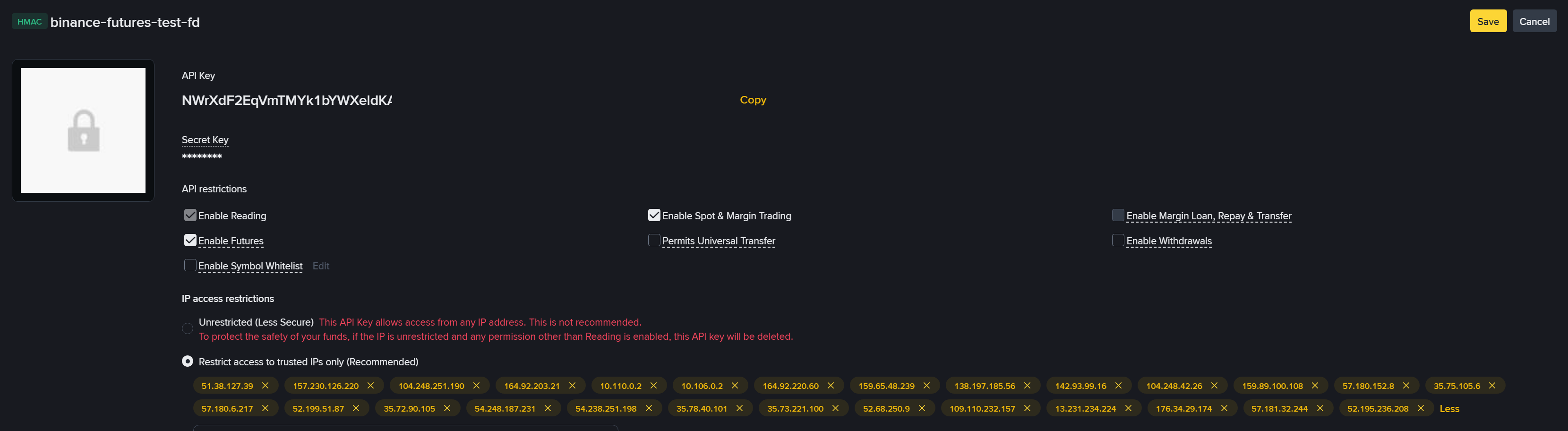
Step 4. Configure IP Whitelist (Mandatory)
⚠️ Binance does not allow enabling futures trading for an API key without an IP whitelist.
Therefore:
- Enable the option Restrict access to trusted IPs only.
- Add Firedrake server IP addresses (see list below).
- Save changes.
Only after this will Binance allow you to activate Futures access.
Step 5. Configure Permissions
In the API restrictions section, enable:
- ✅ Enable Reading
- ✅ Enable Spot & Margin Trading
- ✅ Enable Futures
Ensure the following are disabled:
- ❌ Enable Withdrawals
- ❌ Permits Universal Transfer
- ❌ Enable Margin Loan, Repay & Transfer
Save changes.
Creating API Keys on Bybit
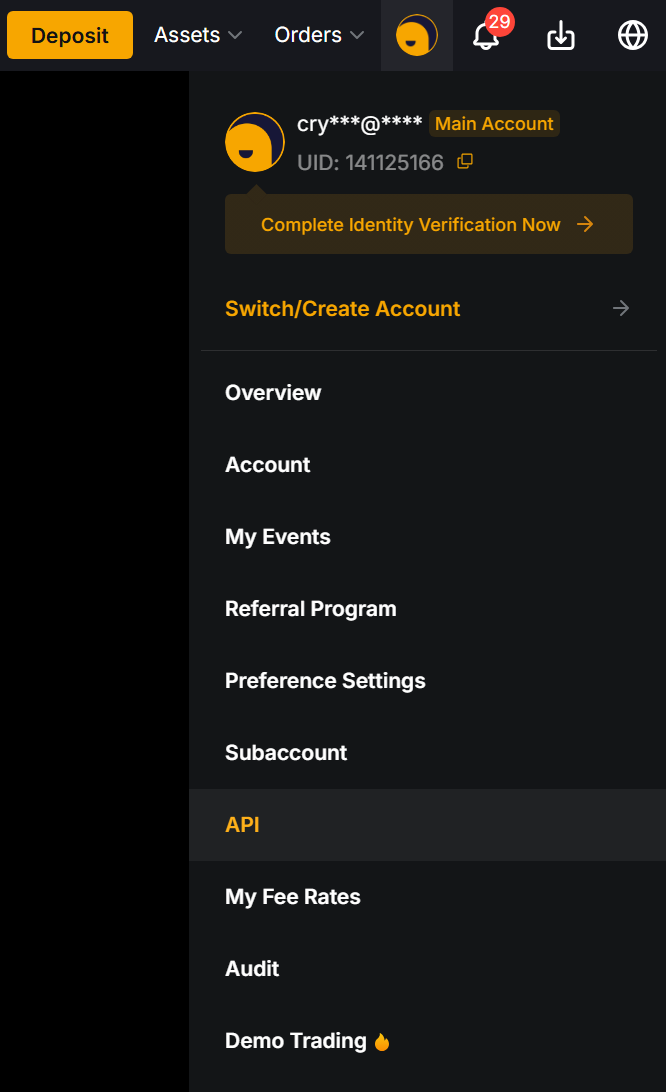
Step 1. Go to API Section
- Log in to your Bybit account.
- Open: Account → API.
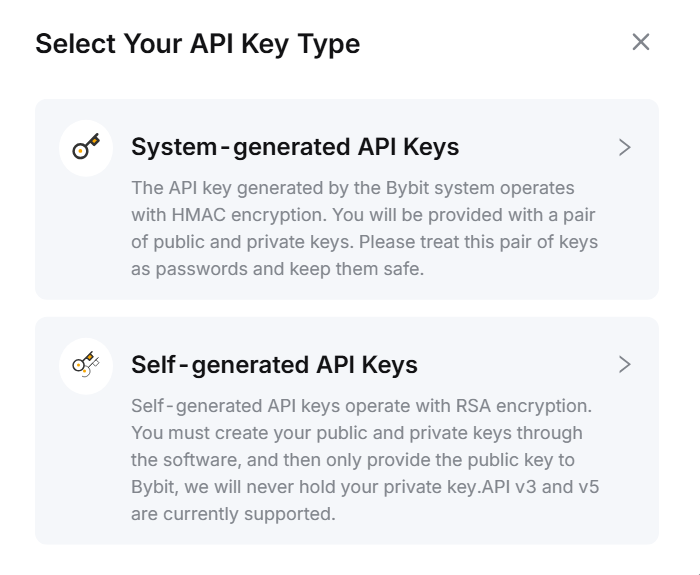
Step 2. Select API Key Type
When creating a key, select:
- ✅ System-generated API Keys (HMAC)
❌ Self-generated API keys (RSA) are not supported by Firedrake.
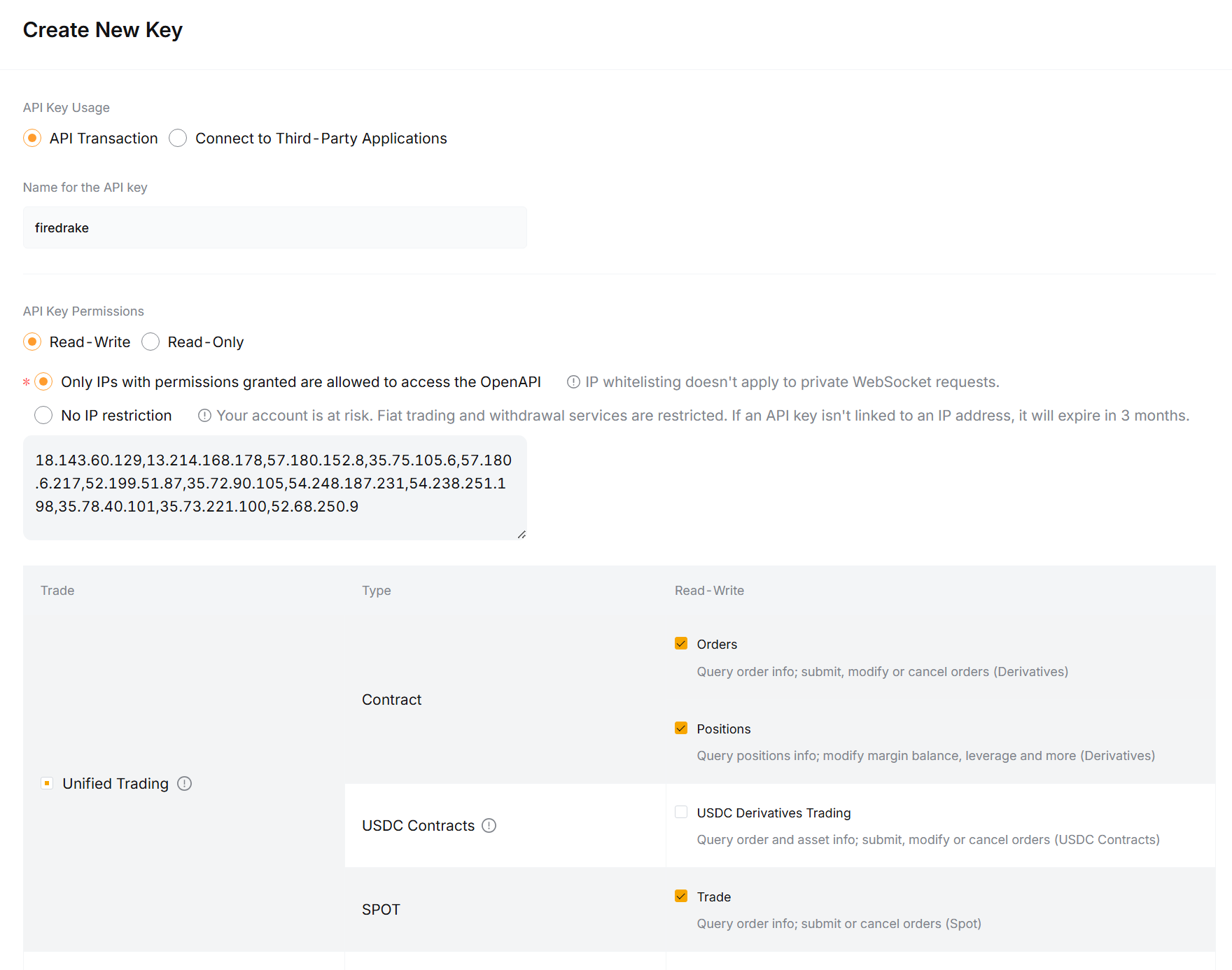
Step 3. Configure Permissions
The API key must be created in Read-Write mode and include:
- ✅ Trade — Spot
- ✅ Trade — Derivatives (USDT Perpetual / Linear Futures)
- ✅ Account / Positions / Orders (Read)
Ensure that:
- ❌ Withdraw — is not selected
Step 4. Save Keys
After creation, Bybit will show:
- API Key
- API Secret
🔐 The keys appear only once. We recommend entering them immediately into the Linked Accounts connection form on Firedrake and NOT saving them on your personal computer or other devices. Once the account is connected to Firedrake, these keys will not be needed anywhere else.
For additional security, we recommend rotating your API keys periodically (every 1-3 months).
Adding API Keys to Firedrake
After creating the keys:
- Go to Firedrake → Accounts → Add Exchange Account.
- Select the exchange (Binance or Bybit).
- Enter:
- API Key
- Secret Key
- Save settings.
Firedrake will automatically verify the key and start syncing.
Security Recommendations
When connecting an exchange account to Firedrake, you remain solely responsible for the security of your API keys and funds. The following recommendations help minimize risks.
Minimum Necessary Permissions
Create API keys only with the permissions necessary for trading.
IP Whitelist (Highly Recommended)
Using an IP whitelist:
- protects keys from being used by unauthorized parties,
- reduces the risk of keys being blocked by the exchange,
- mandatory for Binance Futures.
Firedrake Server IP Addresses:
18.143.60.12913.214.168.17857.180.152.835.75.105.657.180.6.21752.199.51.8735.72.90.10554.248.187.23154.238.251.19835.78.40.10135.73.221.10052.68.250.9
Troubleshooting
If the key verification fails:
- Check that read/write access is enabled.
- Ensure Firedrake IP addresses are added.
- Ensure Spot + Futures are enabled.
- Check that the key is not read-only.