Market Regime
The market regime classifications describe the state the market is in, not just where the price is. They answer questions such as: is the market unusually calm or unusually wild right now? Is the trend young, steady or fading? Is the price riding on the trend or fighting it?
There are four of them, calculated for futures, on every timeframe from 1m to 1w (1m, 5m, 15m, 30m, 1h, 4h, 1d, 1w):
| Classification | Question it answers |
|---|---|
| MRC width | Is the Mean Reversion Channel narrower or wider than usual? |
| Cloud width | Is the cloud narrower or wider than usual? |
| Cloud phase | What stage is the cloud (and the trend) in? |
| Price vs cloud | Is the price above, inside or below the cloud right now? |
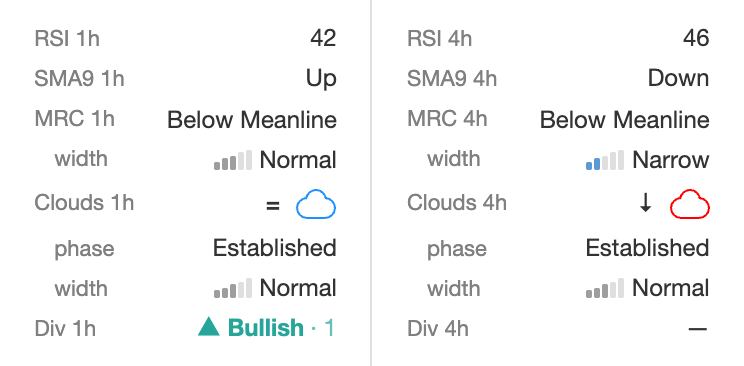
In the terminal the widths are shown as a five-bar meter with a label, the phase as text, and the price position as an arrow next to the cloud icon. Hover over a value to see its full name. In this example, on 1h the price is above a red cloud that is narrowing — a classic picture of a downtrend that may be ending.
Widths and phase are calculated on closed candles and change once per candle, shortly after it closes. The price position is live.
MRC width and cloud width
What it is and how it is calculated
Each candle, the width of the channel (or of the cloud) is compared with its own typical width over the last 200 closed candles of the same contract and timeframe. "Typical" is the median, so a few extreme candles do not distort it.
The ratio "current width ÷ typical width" is then put into one of six classes:
| Class | Ratio to the typical width | Meter |
|---|---|---|
| Very narrow | less than 0.6× | 1 bar, blue |
| Narrow | 0.6× – 0.8× | 2 bars, blue |
| Normal | 0.8× – 1.25× | 3 bars, grey |
| Wide | 1.25× – 1.6× | 4 bars, orange |
| Very wide | 1.6× – 2.5× | 5 bars, red |
| Anomalously wide | 2.5× and more | 5 bars, red, ⚠ |
Because every contract is compared with its own history, the classes mean the same thing for a quiet large-cap coin and for a volatile small one.
What it is for
- Squeeze. A very narrow MRC or cloud means the market has gone quiet. Quiet periods often end with a sharp move — in either direction.
- Unusual activity. Very wide and anomalously wide mean the market is far more volatile than usual: news, a liquidation cascade, a breakout. Zones and levels that worked before may be overrun.
- Normal conditions. Normal is the comfortable middle where most rules behave as expected.
The MRC width reacts slowly — after a strong impulse it usually reaches its peak dozens of candles later. The cloud width reacts faster.
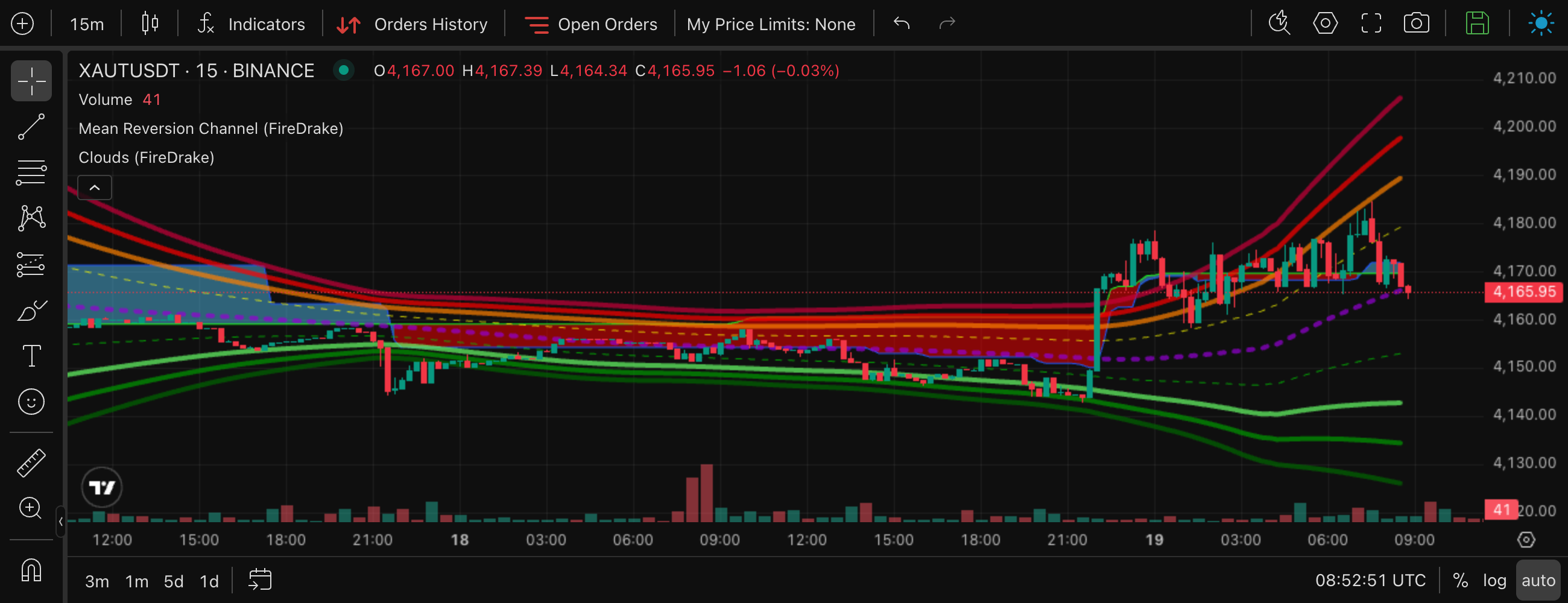
XAUTUSDT, 15m. For a day the price moves in a tight range and the MRC bands converge — a squeeze. Then the price breaks out and the bands flare out: the MRC width jumps to anomalously wide.
How to use it
- Avoid trading into chaos. Exclude very wide / anomalously wide on 15m–1h for mean-reversion strategies: in such markets an "oversold" price can keep falling far beyond the usual zones.
- Prepare for a breakout. Very narrow MRC or cloud on 1h–4h marks contracts that are coiling up. Combine with the cloud colour to choose the direction.
- Prefer normal markets for grid-style deals. Grid and averaging settings are usually tuned for normal volatility.
Cloud phase
What it is and how it is calculated
The phase compares the current thickness of the cloud with the thickness a cloud normally has in a steady trend on that contract and timeframe, and — in the middle range — looks at whether the cloud has been getting thinner or thicker over the last three candles.
| Phase | What it means |
|---|---|
| Thin | The cloud is much thinner than in a steady trend (less than half). The trend is just being born or is fading; colour changes are most frequent here. |
| Narrowing | Mid-thickness and getting thinner — the trend is losing strength. |
| Intermediate | Mid-thickness and not changing much. |
| Widening | Mid-thickness and getting thicker — the trend is gaining strength. |
| Established | Normal thickness for a steady trend. The trend is well formed. |
| Expanded | Thicker than in a normal trend. Usually the price has slowed down or stalled while the cloud lines are still far apart. |
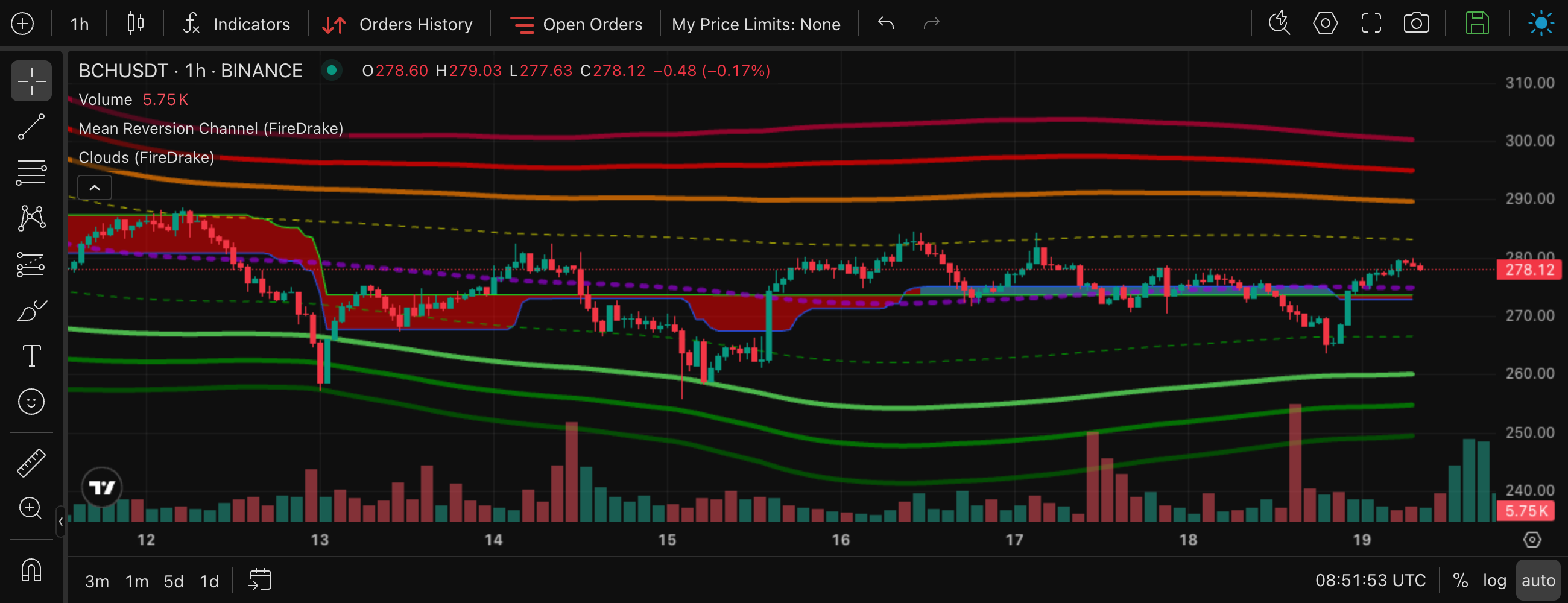
BCHUSDT, 1h — thin. After the downtrend the cloud has turned blue, but it is only a thin strip and the price keeps crossing it: the new trend is not confirmed yet.
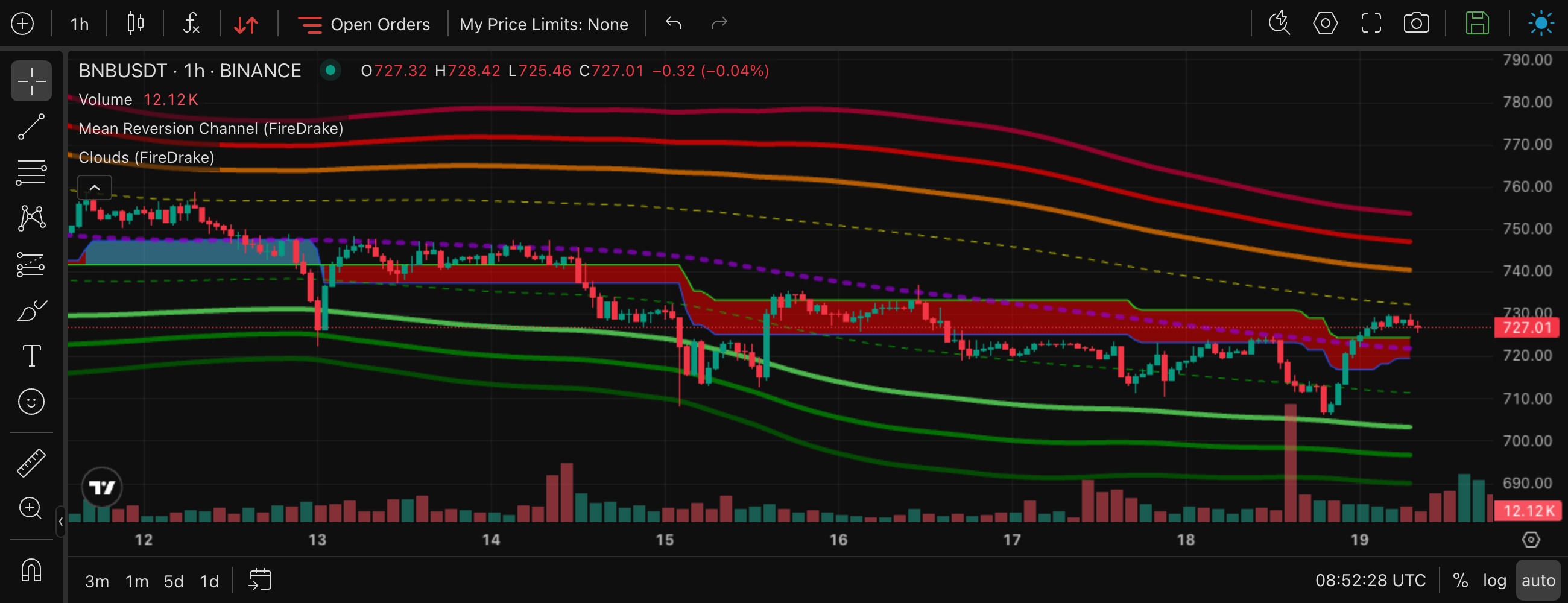
BNBUSDT, 1h — narrowing. The price rebounds into the red cloud and the cloud gets thinner: the downtrend is losing strength.
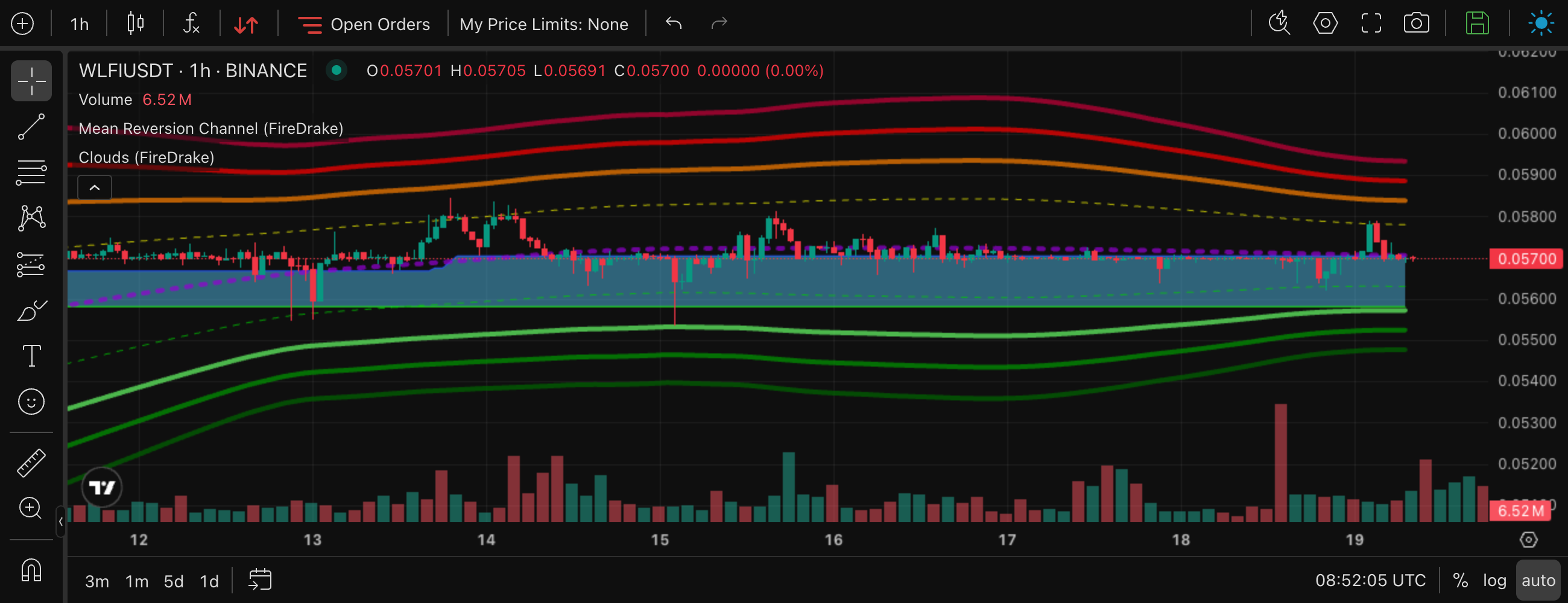
WLFIUSDT, 1h — expanded. The price has gone flat at the top of a wide blue cloud: the trend has paused while the cloud is still thick.
What it is for
The phase shows how reliable the current cloud colour is. On our historical data, across timeframes:
- with a thin cloud, the colour changed within the next 20 candles in roughly 26–30% of cases;
- with an established cloud — in only about 5–10%;
- an expanded cloud changed colour least often of all.
So "Blue + Established" is a much steadier uptrend than "Blue + Thin".
How to use it
- Avoid the moment of a colour change. Exclude Thin (and optionally Narrowing) on your trend timeframe — this filters out most of the situations where the cloud is about to flip.
- Trend-following entries. Require Established or Widening on 1h/4h for deals in the direction of the cloud.
- Reversal hunting. Narrowing or Thin on a higher timeframe, together with the price already on the other side of the cloud, highlights trends that may be ending.
Price vs cloud
What it is and how it is calculated
The current price is compared with the visible cloud (the space between the fast and the slow line):
| Value | Arrow | Meaning |
|---|---|---|
| Above cloud | ↑ | The price is above both edges of the cloud. |
| Inside cloud | = | The price is between the edges. |
| Below cloud | ↓ | The price is below both edges. |
The position is live — it follows the price.
What it is for
The colour says which way the trend points; the position says whether the price agrees with it right now:
- Blue cloud, price above (or red cloud, price below) — the price is on the trend's side. On our data the colour then changed within 20 candles only in about 3–9% of cases.
- Price inside the cloud — the market is testing the trend: about 8–14%.
- Blue cloud, price below (or red cloud, price above) — the price is already fighting the trend. The colour then changed within 20 candles in about 40–45% of cases — this is the main early warning of a reversal.
The position does not predict where the price goes next on its own; its value is in confirming or questioning the cloud colour.
How to use it
- Trend-following: cloud Blue + price Above cloud on 1h for longs; Red + Below cloud for shorts.
- Pullback entries: cloud Blue + price Inside cloud — the price has come back to the trend support.
- Avoid fighting a turning market: skip longs where the 1h cloud is still blue but the price is below it.
Using the regime in the screener
Each timeframe group of the screener filters has four fields: MRC width, Cloud width, Cloud phase and Price vs cloud. Select one or more values; an empty field means "any". The filters are saved together with your presets.
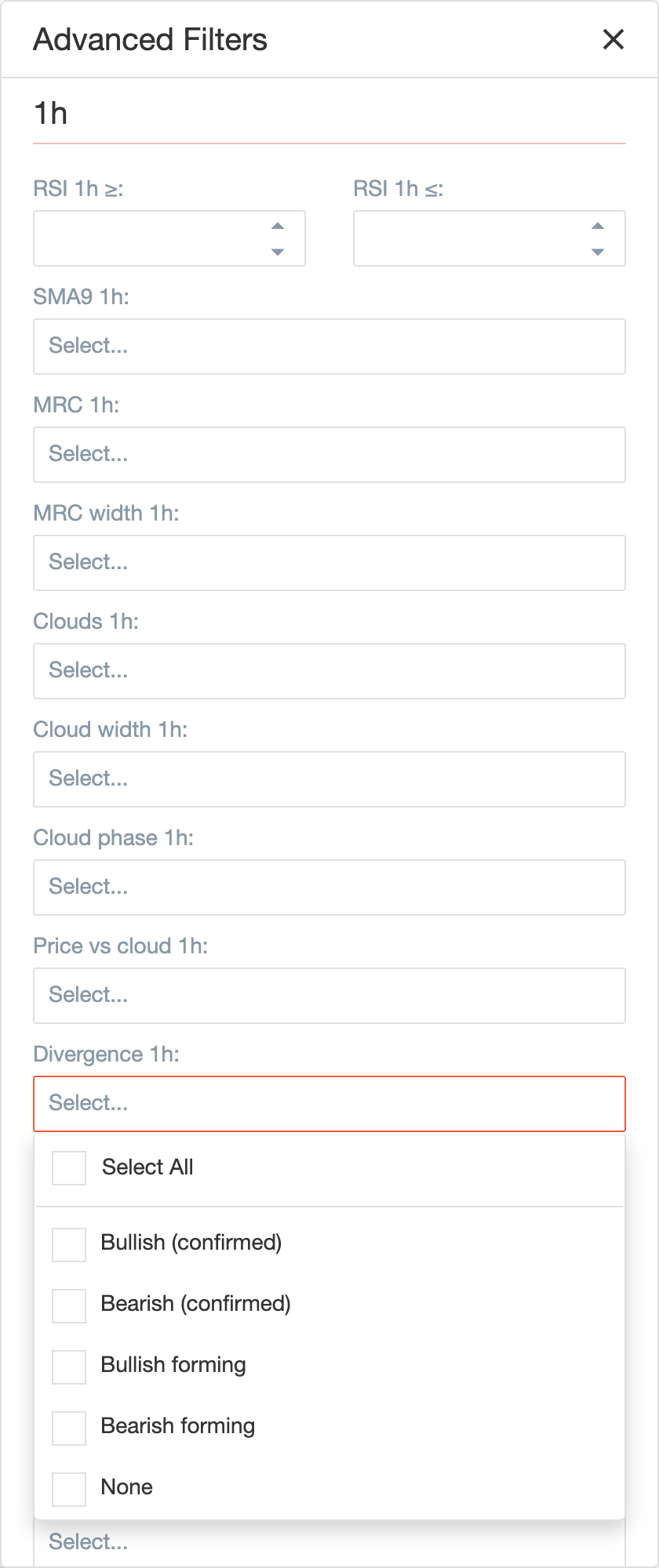
A contract whose class is not available yet (too little history) does not match a field that has values selected.
Using the regime in trade strategies
In the trade strategy form each classification has its own switch: Width in the MRC section; Width, Phase and Price position in the Clouds section. Inside are the same values for every timeframe:
- an empty timeframe means "any";
- several values selected — any of them matches;
- a contract whose class is not available yet (too little history) does not match.
MRC width is checked on the MRC source, just like the price zones: with BTC as the source the strategy looks at Bitcoin's channel width. The cloud classifications are always taken from the contract itself.
Example — "long a steady trend, but not in chaos":
| Switch | Condition |
|---|---|
| Clouds → Colour | 1h = Blue |
| Clouds → Phase | 1h = Established, Widening |
| Clouds → Price position | 1h = Above cloud |
| MRC → Width | 15m = every class except Very wide and Anomalously wide |
The counter at the bottom of the form shows how many contracts match right now; the Open in screener link opens the screener with the same conditions.
Ready-made screener filter sets: Monitoring in the Screener.