Spot Terminal
The Spot Terminal is the main working area of the Spot section in Firedrake.
Use this section when you want to review the market, open a buy form for a selected asset, monitor the spot assets you already hold, and check your order history without switching between several different pages.
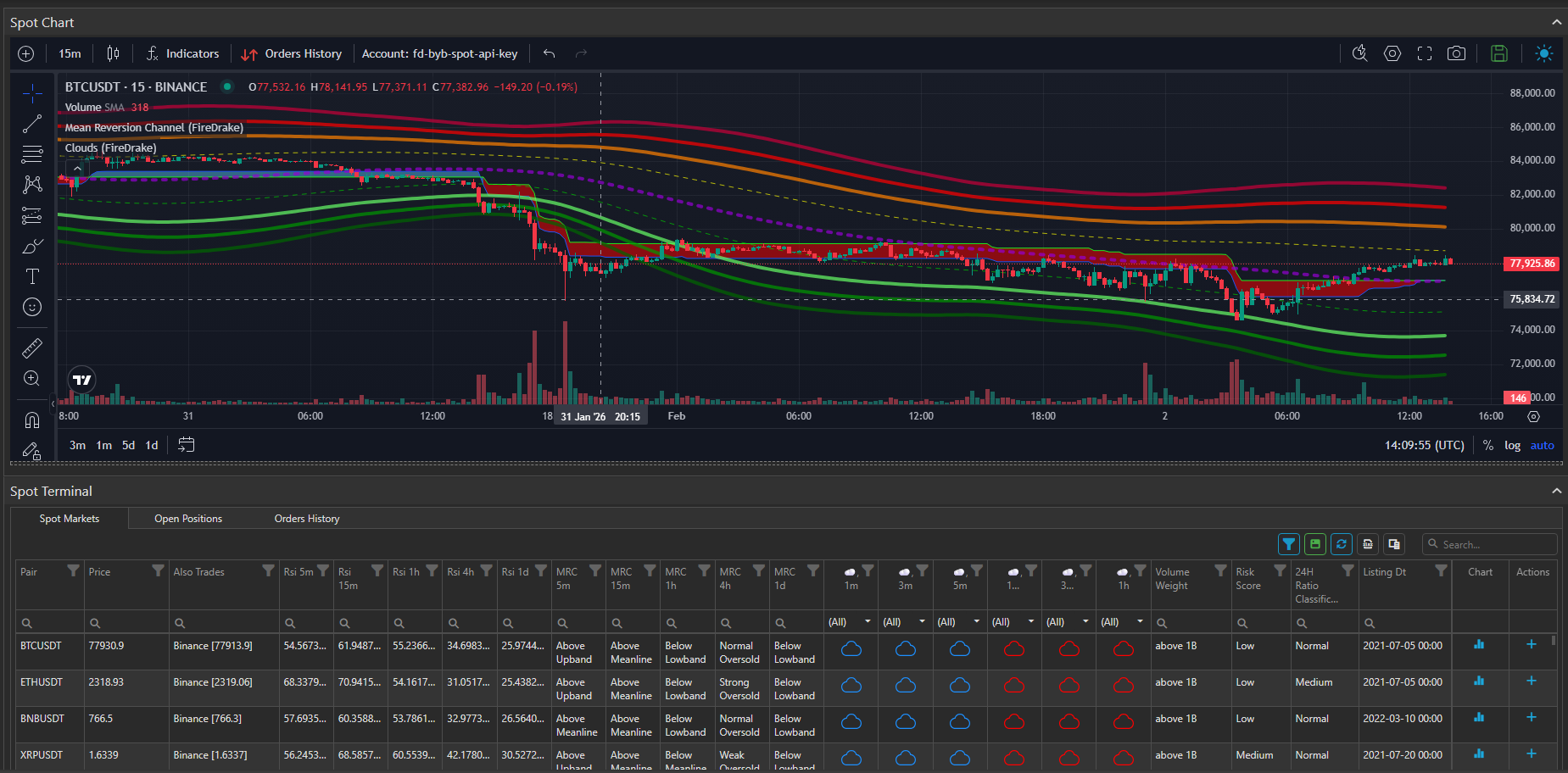
The page is divided into two main parts:
- Spot Chart
- Spot Terminal
The lower part includes three tabs:
- Spot Markets
- Open Positions
- Orders History
Spot Chart
The upper part of the page shows a TradingView chart for the selected instrument.
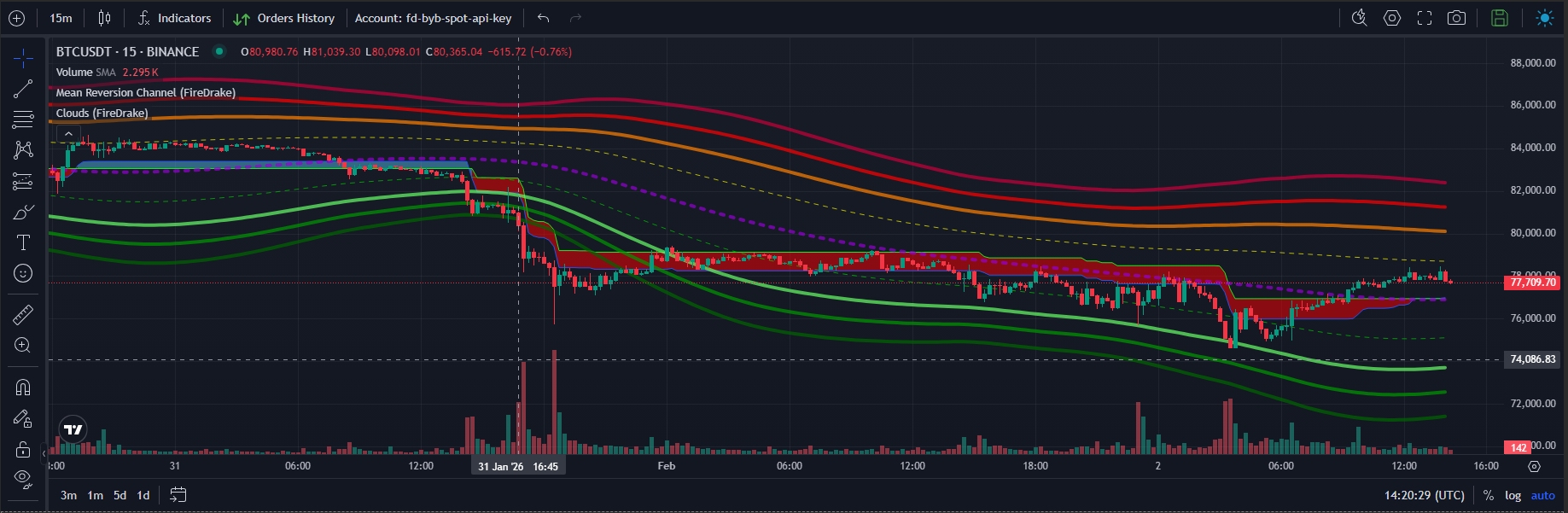
The chart works together with the terminal tables below it. This means you can move from selecting an instrument to reviewing it on the chart without leaving the section.
For users, this makes the Spot Terminal a convenient workspace: the chart is there for visual review, while the tabs below it are used for actual day-to-day actions.
Spot Markets
The Spot Markets tab is the main list of spot instruments inside the terminal.
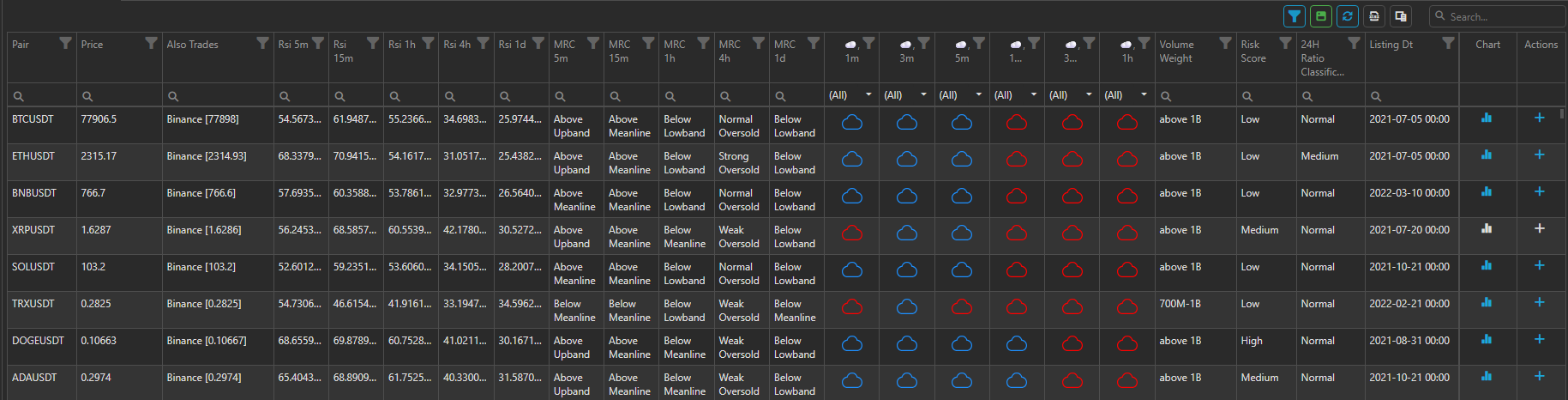
Use this tab when you want to:
- browse available spot pairs;
- compare instruments side by side;
- search for a specific asset;
- filter and sort the market list;
- open the selected instrument on the chart;
- start a buy action for a selected asset.
Working with the instruments list
The table is designed as a practical working tool. It can be used to:
- search for an instrument by keyword;
- filter the list;
- sort instruments by the values shown in the table;
- change visible columns;
- save your preferred table layout;
- refresh the list manually.
Buying from the terminal
The instruments list is used for analysis and quick actions inside the terminal.
From the Actions column, you can open a buy form for the selected pair. In that form, you choose the account and the amount you want to buy.
This means the terminal supports market observation and starting a spot purchase directly from the same working screen.
Open Positions
The Open Positions tab shows the spot assets that are currently held on your connected accounts.
Use this tab when you want to review:
- which assets are currently held;
- which account holds them;
- current price and estimated value;
- available and locked balance;
- position-related profit and loss fields.
Selling from Open Positions
This tab is used for monitoring positions and managing exits.
From Open Positions, users can:
- open the selected asset on the chart;
- select one position;
- select several positions at once;
- open the sell window;
- sell an asset fully;
- sell an asset partially;
- sell several selected assets in one action.
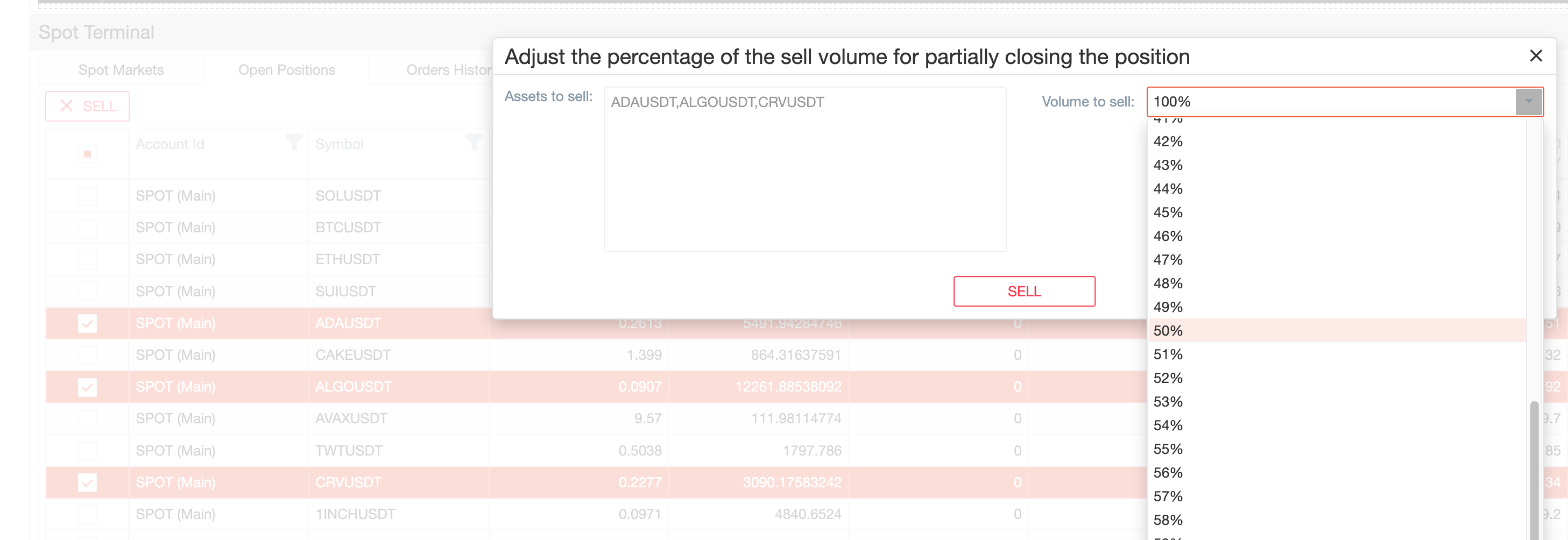
This is one of the most important practical functions of the Spot Terminal: you can return to your existing holdings and manage exits from the same place where you monitor them.
Orders History
The Orders History tab shows your spot order history.
Use it when you want to:
- review previous buy and sell activity;
- find a specific order by account or symbol;
- check what has already been executed;
- return to the related instrument for additional review.
Like the other terminal tables, this tab supports search, layout customization, and manual refresh.
Working with the tables
All terminal tables are designed for everyday use.
They support the actions users typically need during practical work:
- search;
- filtering;
- sorting;
- column management;
- saved table layout;
- refresh;
- export.
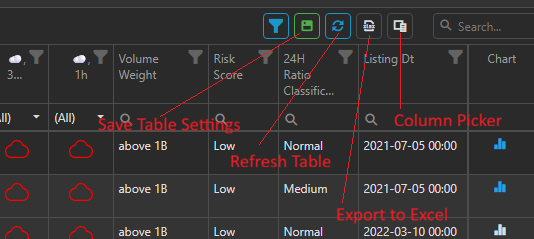
This makes the Spot Terminal useful both for quick checks and for more focused trading sessions.
Typical workflow in Spot Terminal
A common workflow inside the Spot Terminal looks like this:
- Open Spot Markets and find an asset you want to review.
- Open the selected instrument on the chart.
- Start a buy action directly from the terminal.
- Return later to Open Positions to monitor the asset.
- If needed, sell the asset fully, partially, or together with other selected assets.
- Use Orders History to review what has already been executed.
Summary
Use the Spot Terminal when you want to:
- review spot markets;
- open a buy form for a selected asset;
- monitor current spot holdings;
- manage full or partial exits;
- review order history.
For most users, this is the main working screen of the Spot module.