Portfolio Builder
The Portfolio Builder section is used to organize regular spot purchases in a structured way.
Open this section when you want to build a portfolio, decide which assets belong to it, set how often purchases should happen, add purchase conditions, and manage Telegram notifications for spot activity.
Work in this section is organized around three tabs:
- Portfolio
- Buy Filters
- TG Notifications

Portfolio Tab
The Portfolio tab is the main place for creating and managing portfolios.
A portfolio in this section is a group of spot assets linked to a connected account and a regular purchase schedule.
Creating a portfolio

When creating or editing a portfolio, users define the core settings of that portfolio, including:
- the connected account;
- portfolio name;
- optional comment;
- buy interval;
- end date for scheduled purchases;
- linked buy filter.
This tab is also used to:
- enable or disable a portfolio;
- edit existing portfolios;
- duplicate a portfolio;
- remove a portfolio that is no longer needed.
Portfolio assets
Each portfolio contains its own list of assets.
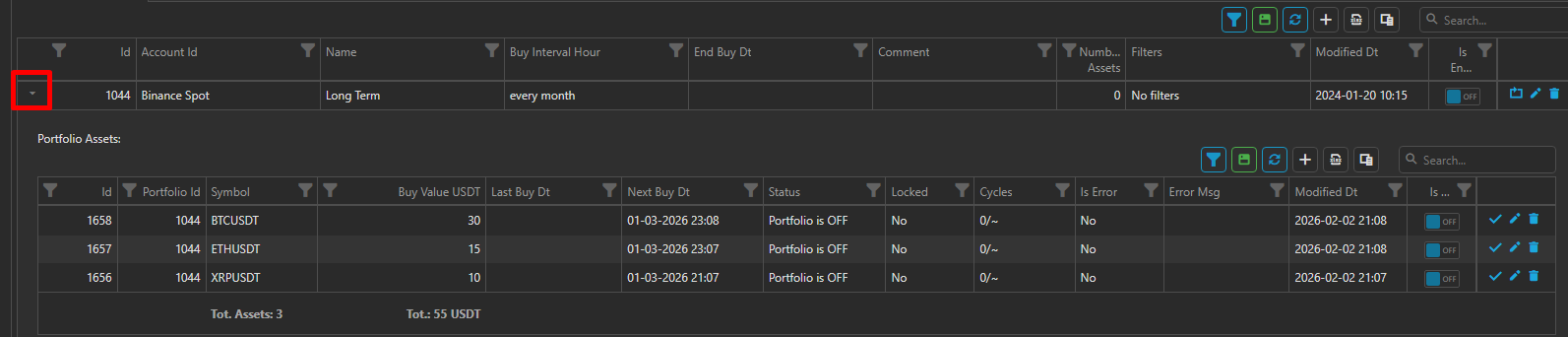
For each asset, users can manage:
- Symbol — the trading pair used for purchases;
- Buy Value USDT — the amount used for one purchase;
- Next Buy Dt — the planned date and time of the next purchase;
- Max Cycles — how many purchase cycles are allowed for this asset.

The asset list also includes service information that helps users monitor the portfolio, such as status, lock state, last buy time, and possible errors.
This makes the Portfolio tab suitable for setup and everyday control.
Buy Filters Tab
The Buy Filters tab is used to create conditions that limit when scheduled purchases are allowed.
A filter can then be linked to one or more portfolios.
Creating a filter
When creating or editing a filter, users define a named set of purchase conditions.

Use this tab when you want your scheduled purchases to depend on time and additional conditions.
In practical terms:
- a portfolio can work without a filter;
- a filter adds extra conditions to the buying process;
- filters are useful when you want more control over when purchases are allowed.
TG Notifications Tab
The TG Notifications tab is used to manage Telegram notifications for spot-related activity by account.
Before using this tab, the user should connect Telegram to the platform profile.
Notification settings
For each connected account, users can manage notifications such as:
- buy notifications;
- sell notifications.

These settings help users stay informed about portfolio activity without having to monitor the web interface all the time.
Typical workflow
A practical workflow in Portfolio Builder usually looks like this:
- Create a portfolio for a connected spot account.
- Set the purchase interval and, if needed, an end date.
- Add one or more assets to the portfolio.
- Set a fixed buy amount for each asset.
- Optionally attach a buy filter.
- Turn on Telegram notifications if needed.
Summary
Use Portfolio Builder when you want to:
- organize recurring spot purchases;
- group assets into portfolios;
- add conditions for purchases;
- monitor portfolio status;
- receive Telegram notifications about spot activity.
This section is especially useful for users who want a more structured approach to spot accumulation.